E1 Series Motherboard Firmware Update Guide
Users with firmware version 1.0.5 or lower can update the firmware by following this tutorial. Machines from later batches come pre‑installed with this firmware.
0. Check Firmware Version
Connect your machine and open LightBurn or Sculpfun Space.

Enter the software and confirm that the machine is connected. Go to the Console.
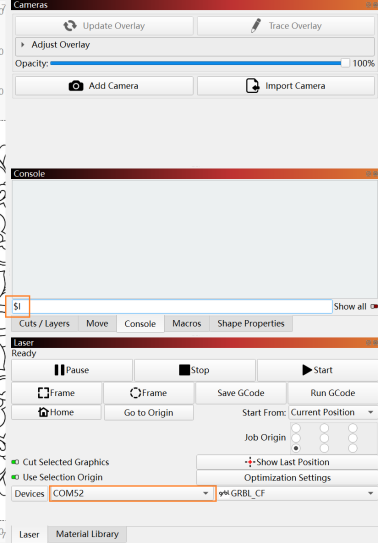
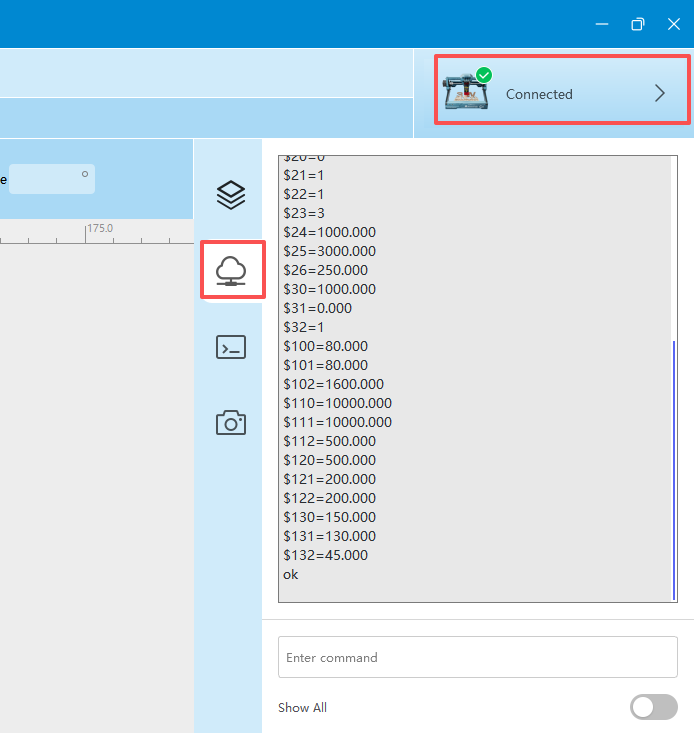
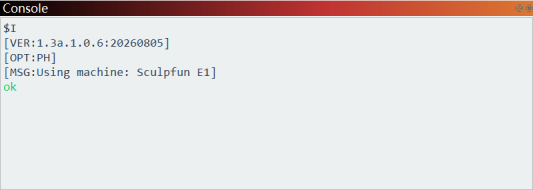
Enter $I to check the firmware version number. The firmware version shown is 1.0.6.
1. Required Accessories
E1 Series Machine
Original USB data cable for E1
E1 USB security dongle
E1 power adapter
Computer with Windows 7 or higher operating system
2. Device Connection
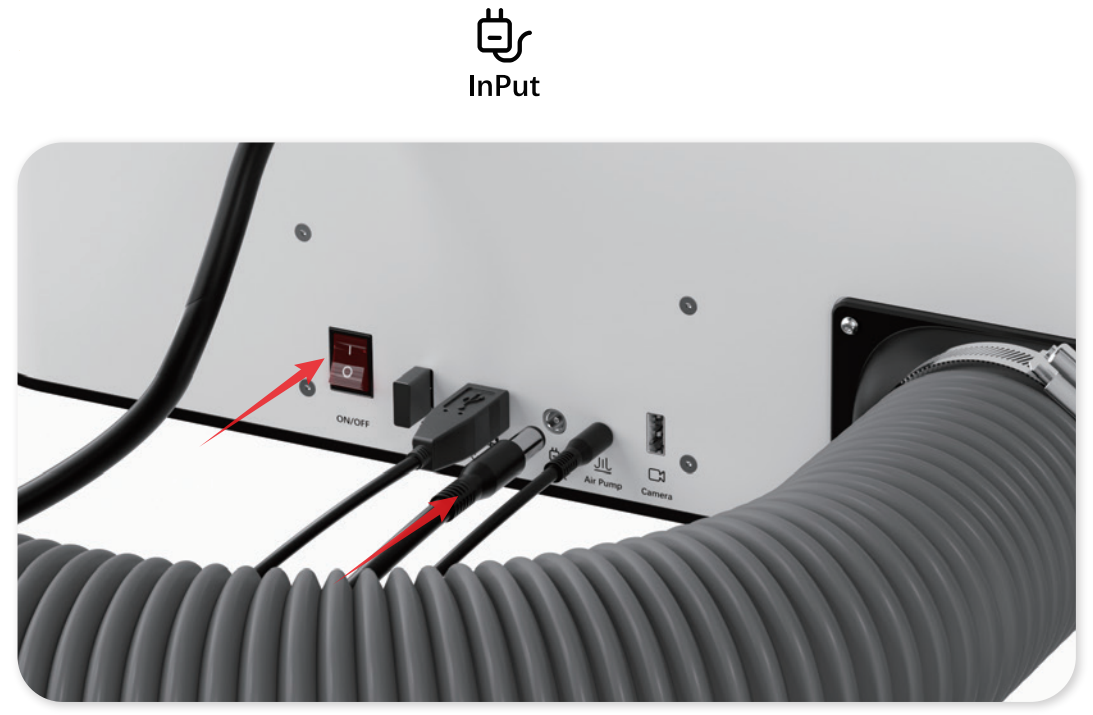
Insert the security dongle, USB data cable and power cord into the E1 machine. Unlock the emergency stop switch and turn on the power switch.
3. Software Download
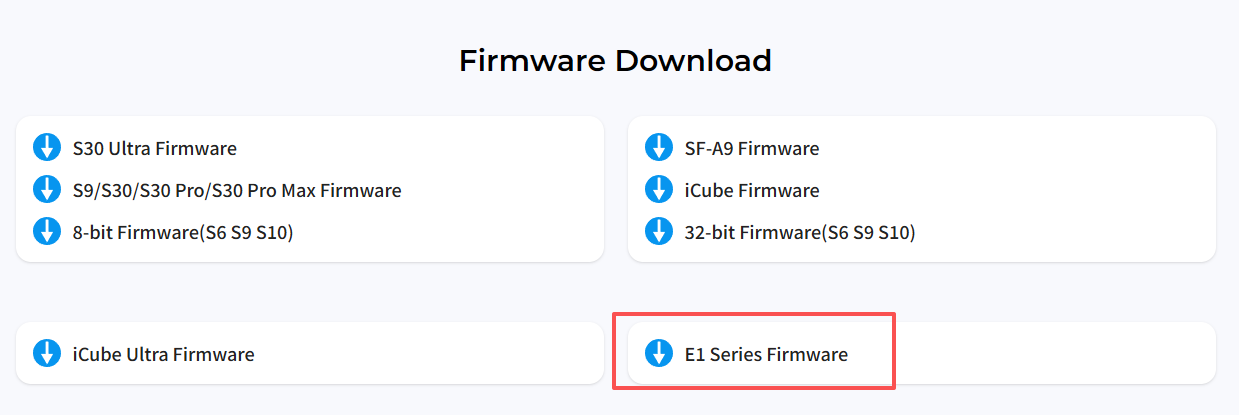
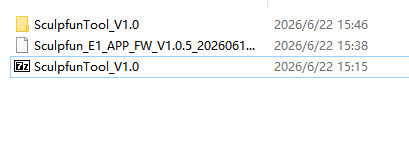
After downloading, extract the compressed file and open "SculpfunTool_V1.0.rar"
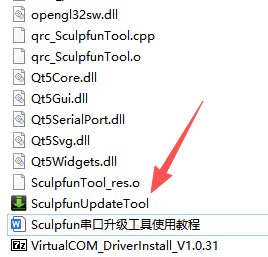
Double-click to launch "SculpfunUpdateTool.exe" inside the extracted folder
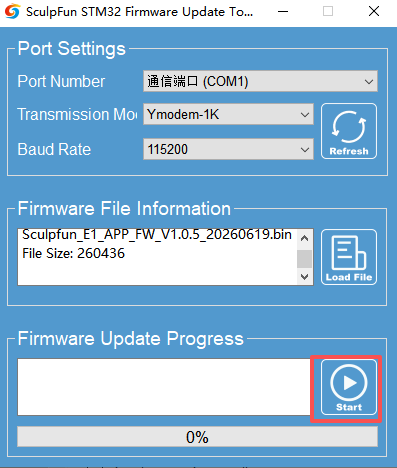
Click the "Refresh" button to refresh port list.
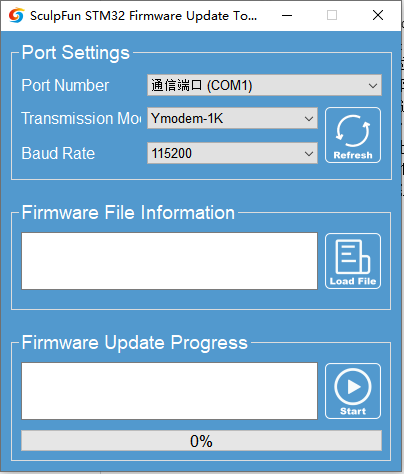
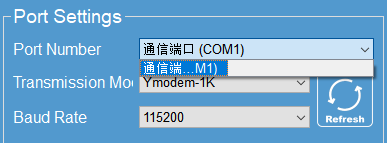
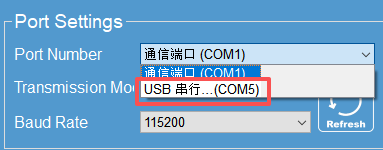
Confirm that the Port Number matches the actual machine port. It should start with COM and appear/disappear when connecting or disconnecting the control board. If mismatched, select the correct port from the dropdown list. If no matching port can be found, check whether the control board power supply is normal, the connection with the computer is stable, and whether there is hardware failure.
Generally, you can identify the machine port by observing the port number changes when powering the machine on and off.
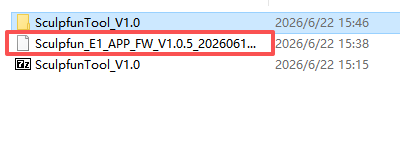
Click "LoadFile" to select the firmware file to be uploaded to the control board.
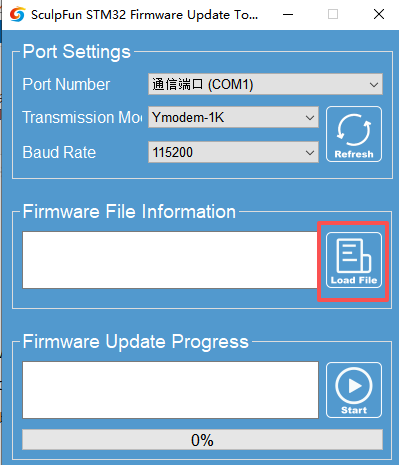
Click "Start" to begin firmware upgrade. The upgrade is complete when the progress bar reaches 100%.