G20 User Guide
Safety Instructions
The laser engraver emits a high-density laser beam to irradiate materials during engraving or cutting, generating high temperatures on the material surface to vaporize materials without combustion. However, most materials are flammable by nature and may ignite into open flames, which could damage the machine and surrounding items.
Please follow the operating guidelines below
1. Do not place this product near flammable and explosive goods, volatile solvents or high heat sources. Store the product in a well-ventilated, cool and low-dust environment.
2. Do not replace the original power cord with cables from other products during operation. Only use the power cord supplied with this unit.
3. Note: Using controls, adjustments or procedures not specified in this document may result in hazardous radiation exposure.
4.After processing, promptly clean the machine worktable, laser module, protective cover and other related components (if equipped) to avoid impact on subsequent use.
5. The operating ambient temperature for the laser ranges from 5℃ to 35℃. Do not use the machine in humid environments or during thunderstorms.
6. Turn off the machine and disconnect the power cord if it will not be used for an extended period.
7. Do not disassemble any machine parts while the device is powered on to avoid accidental electric shock. Do not touch electronic components with hands or tools.
8. Do not touch moving mechanical structures or the laser module while the product is running.
9. Always place a laser-impermeable flat object such as an aluminum alloy plate underneath processing materials.
10. Wear laser safety goggles throughout engraving operations to prevent eye damage from direct exposure to the laser spot.
11. Minor smoke or fumes may be generated during laser engraving and cutting. Operate in a well-ventilated area.
12. Children under 10 years old are prohibited from using this product without adult supervision to prevent personal injury.
13. Keep a fire extinguisher on standby and perform regular maintenance and inspections on it.
14. Never leave the machine unattended during operation.
15. Users shall comply with relevant national and regional laws and regulations of the place where the equipment is used, abide by professional ethics and safety obligations. The use of our products or equipment for any illegal activities is strictly forbidden. Our company shall not be held liable for any legal consequences arising from violations.
16. Minors under 18 years old must be accompanied by an adult when operating the laser engraver.
Software
PC
G20 is compatible with SGD Laser and LightBurn software. Click here to download SGD Laser. The software installer is also stored in the USB flash drive included with the machine.
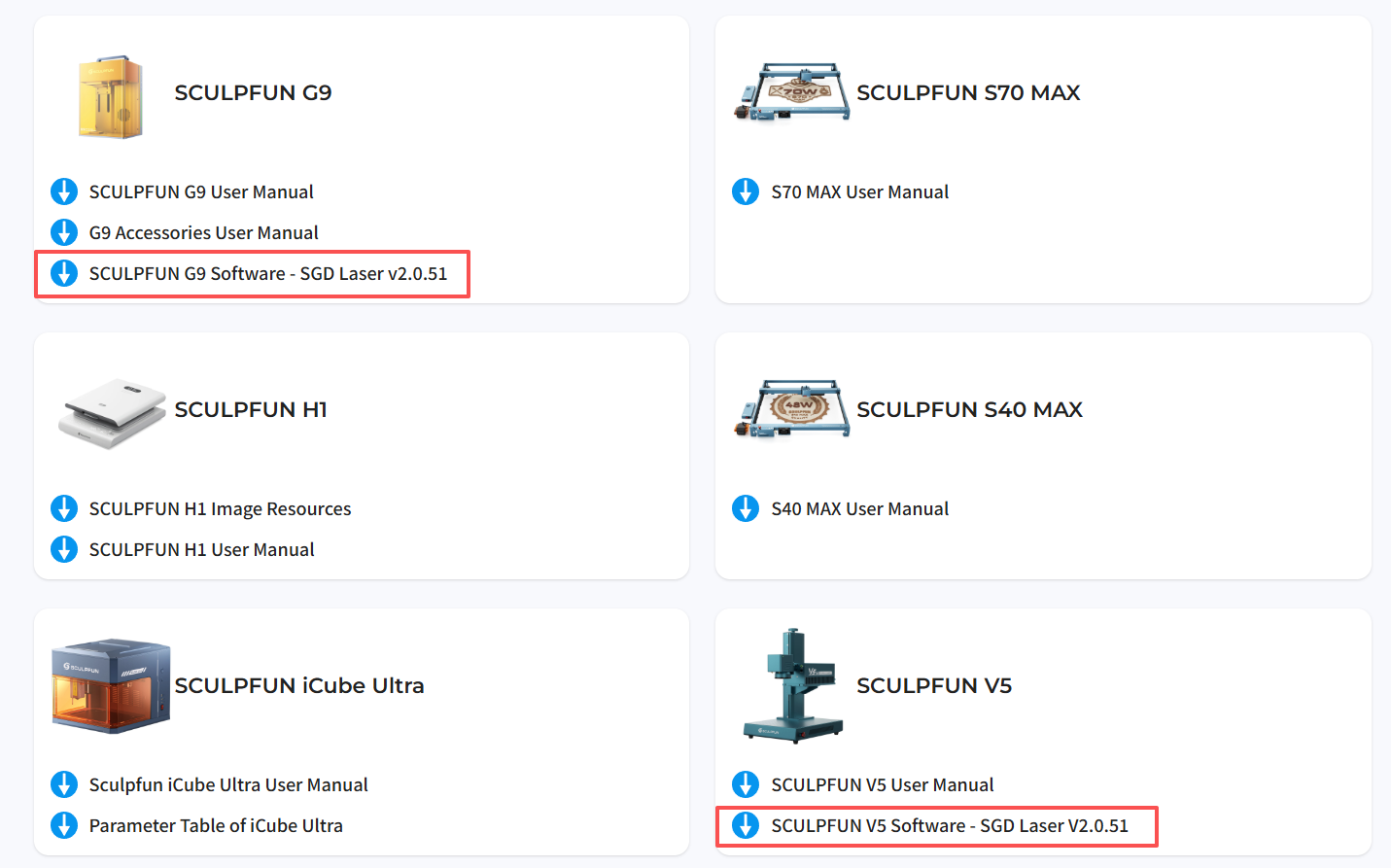
LightBurn Tutorial: See LightBurn Official Documentation
SGD Laser Tutorial: See SGD Laser PC Installation & Operation Tutorial
Mobile
G20 supports the mobile SGD Laser APP, available for download on the Google Play Store and Apple App Store.
Refer to SGD Laser Mobile Installation & Operation Tutorial for software installation and usage instructions.
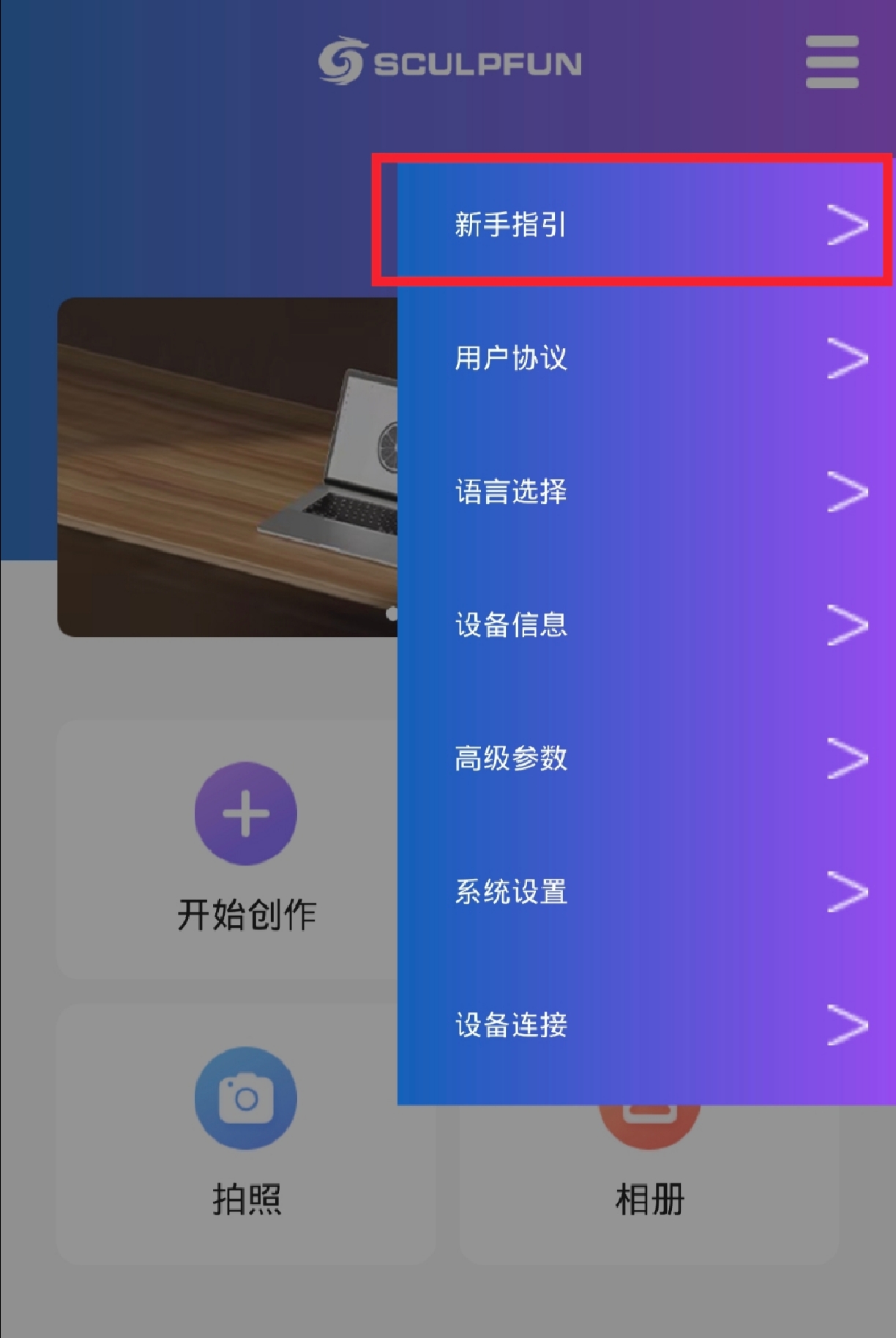
Software usage guides can be found in the New User Guide at the top-right corner of the app homepage.
Accessories
Video Version:
Smoke Hood
The G20 works with G-series smoke hoods. During cutting, deep engraving and relief engraving, it effectively contains and exhausts material dust to prevent inhalation and protect user health.
RA Pro Series Rotary Roller
G20 is compatible with RA Pro series rotary rollers. This accessory can only be used with the PC software.
RA Pro / Pro Max Rotary Roller & Chuck Accessory User Manual
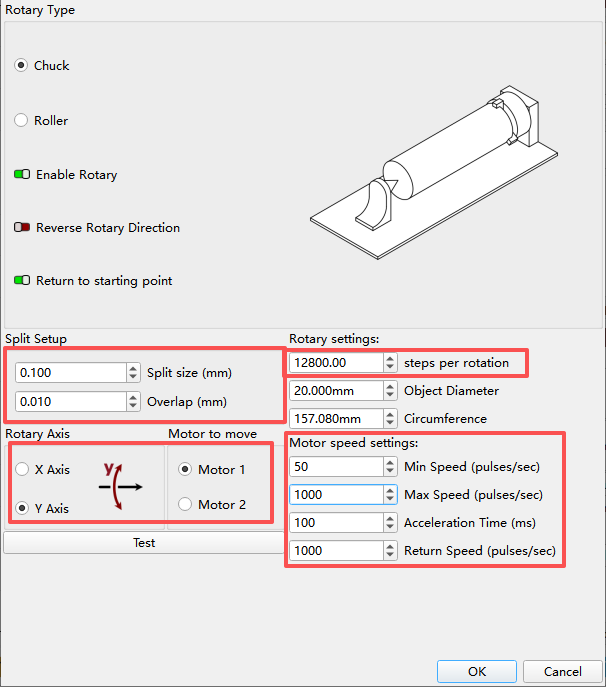
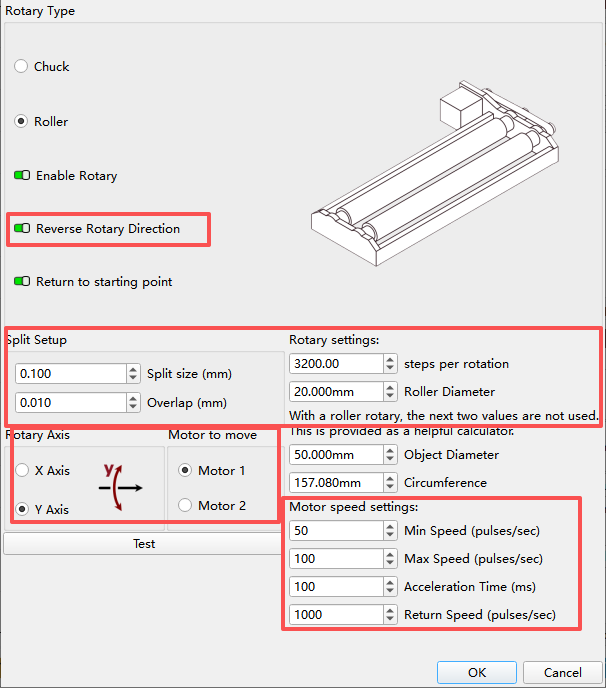
When using with LightBurn software, parameters must be modified as shown in the diagram.
Chuck:
Roller:
G9 SE Expansion Kit
G20 supports the G9 SE expansion kit, which extends the marking area to 350*150mm (effective expanded area: 350*100mm). This accessory can only be used with the PC software.
G9 SE Expansion Kit User Manual
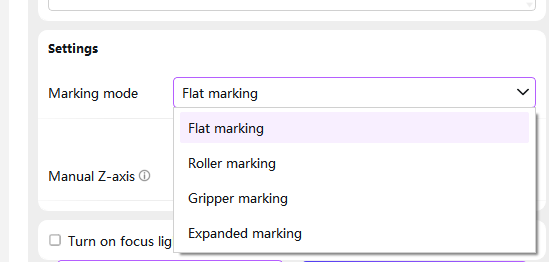
Click Menu Bar - Device Information to turn on the switch for the matching accessory.
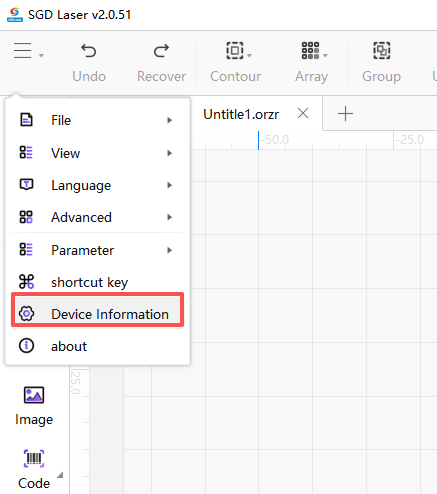
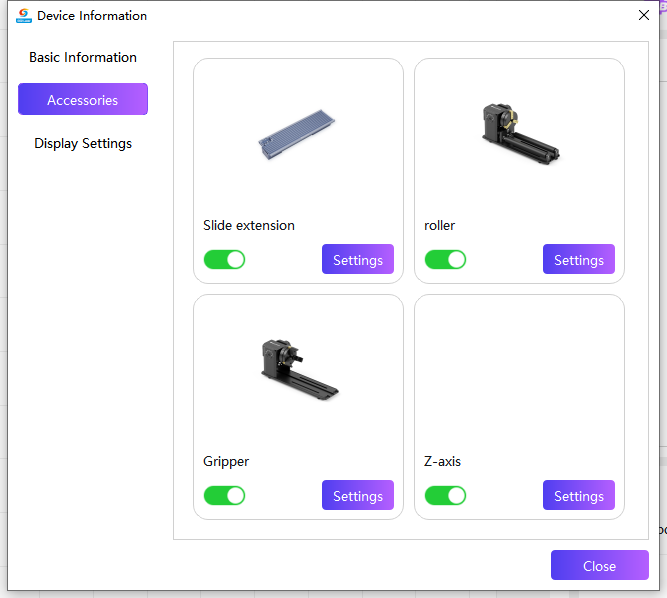
Close the window, navigate to the bottom right corner and select the corresponding mode to activate the accessory.