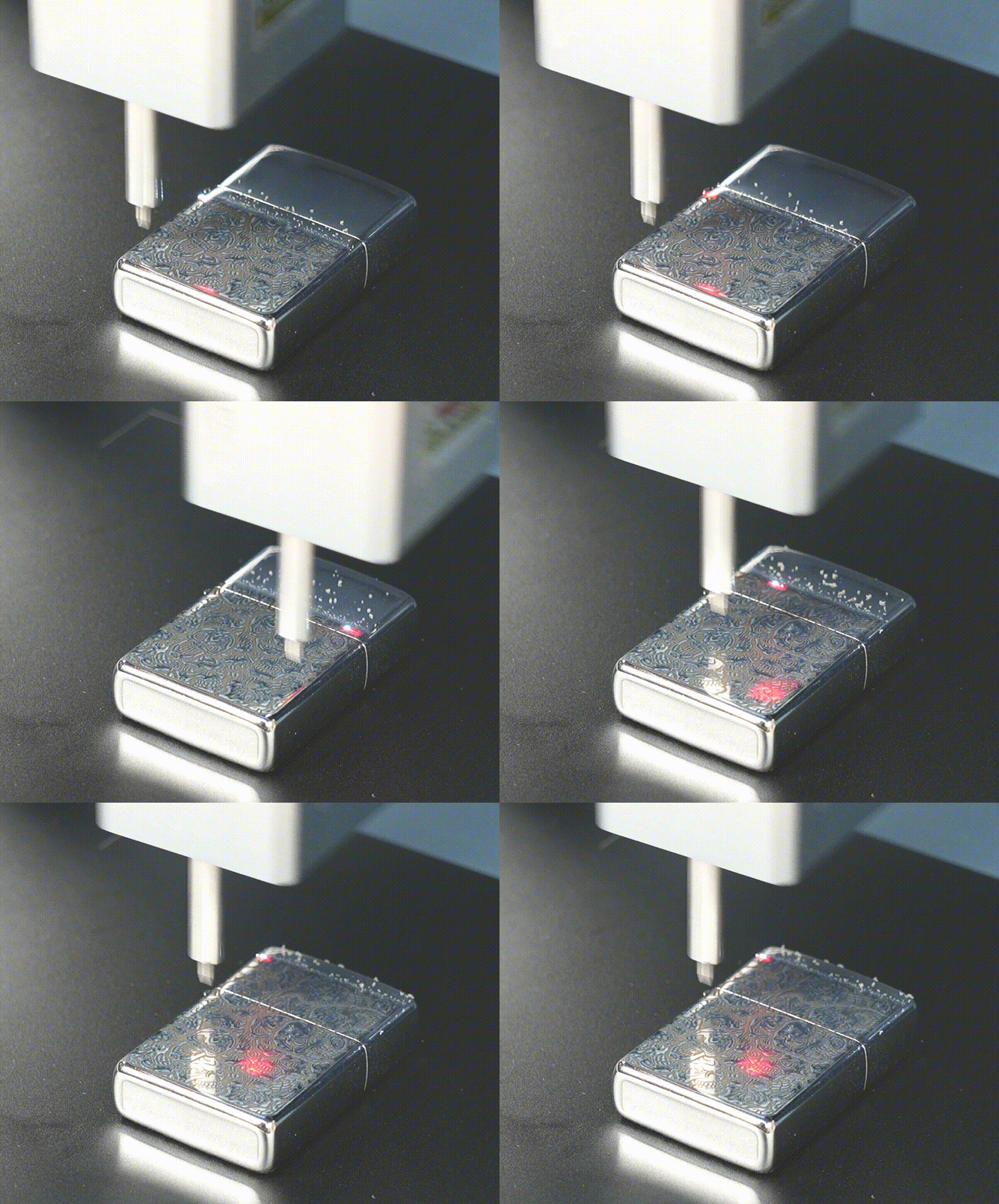
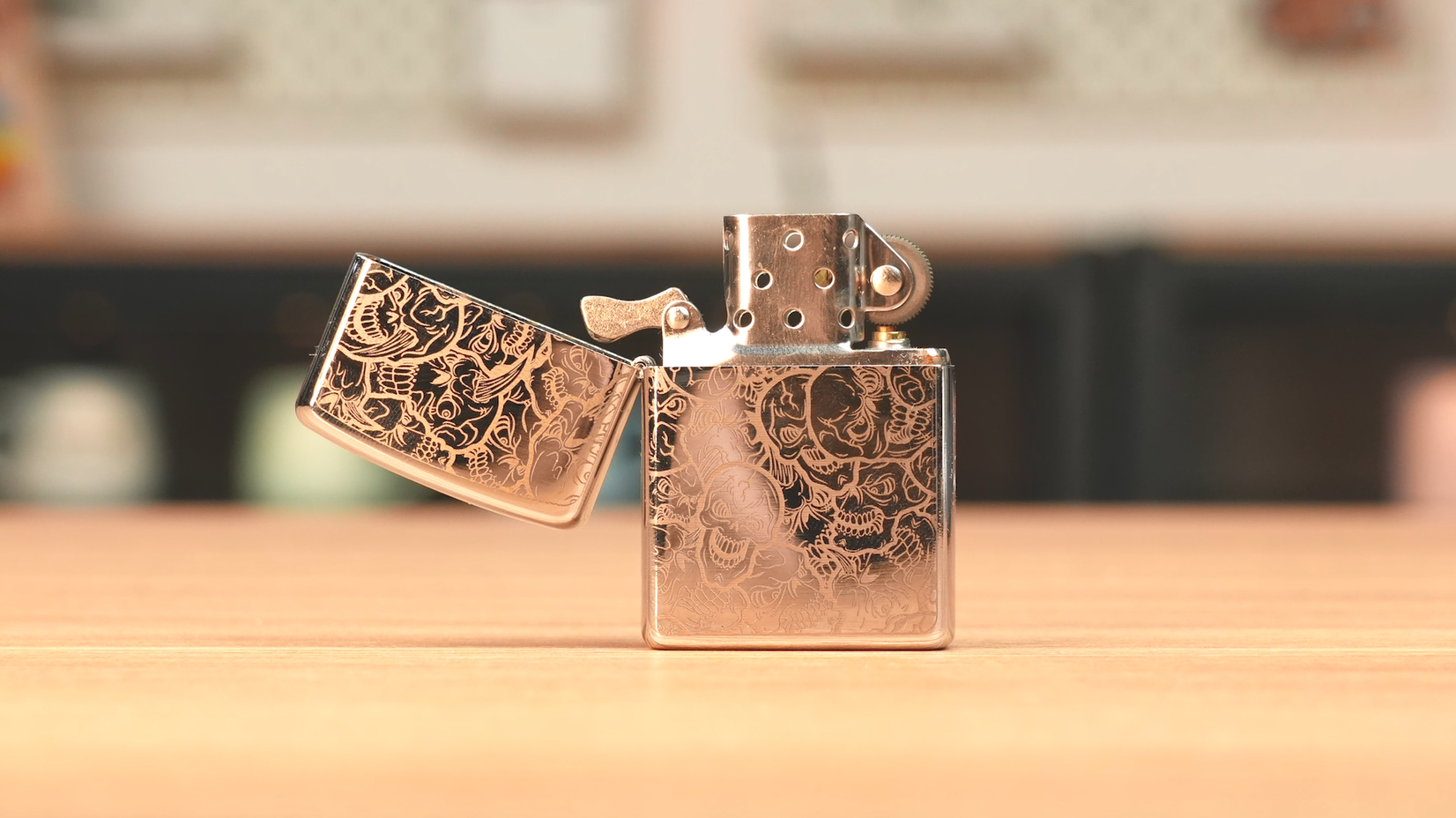
iCube Ultra Series User Guide
This document is the operation tutorial for the iCube Ultra main unit. For accessories, please refer to: iCube Ultra Series Accessory Tutorial.
Video Version: (1:10 – End)
First Use
Please read the user manual thoroughly and learn all safety information before operating the machine for the first time.
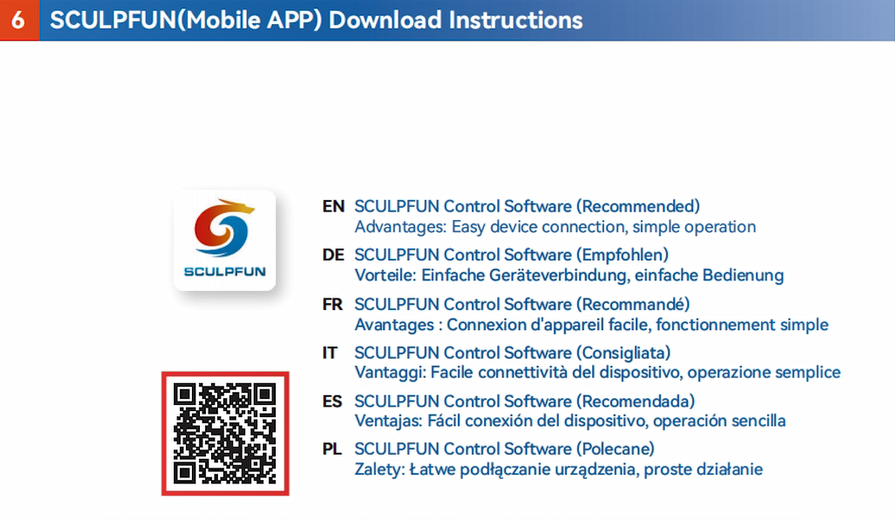
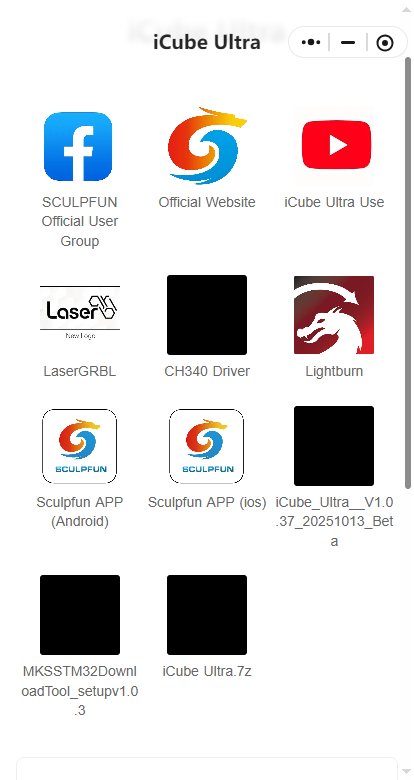
Scan the QR code shown in the pictures or user manual to watch tutorial videos or download software.
Software Installation & Connection
Mobile
The iCube Ultra is compatible with Sculpfun official mobile application – Sculpfun APP.
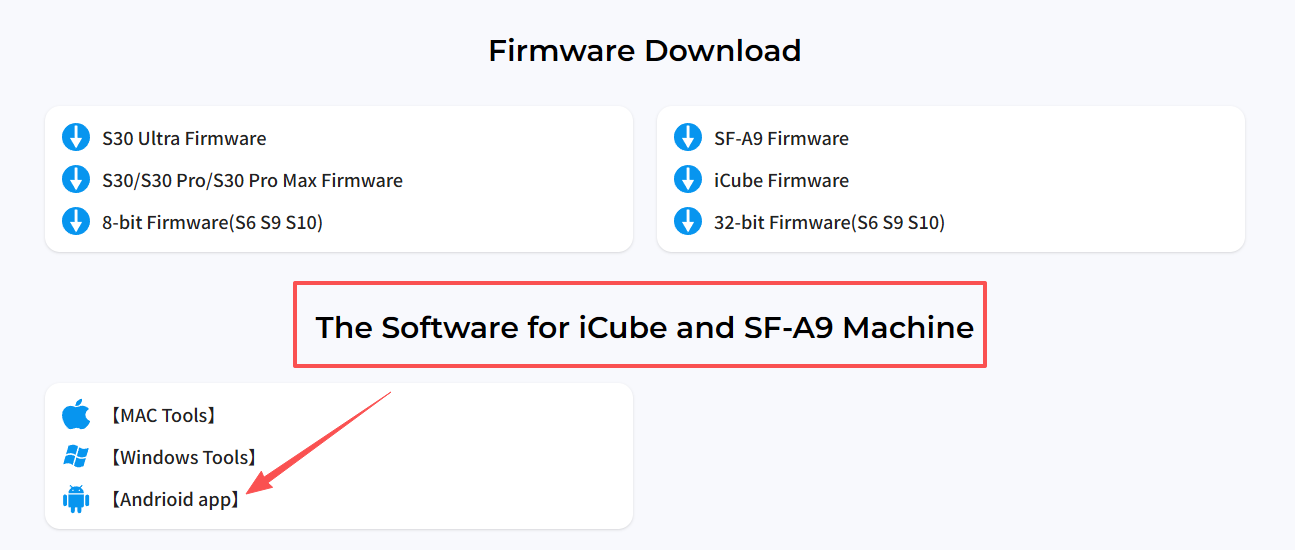
Click here to download the official mobile app, or get it from Google Play Store and Apple App Store.
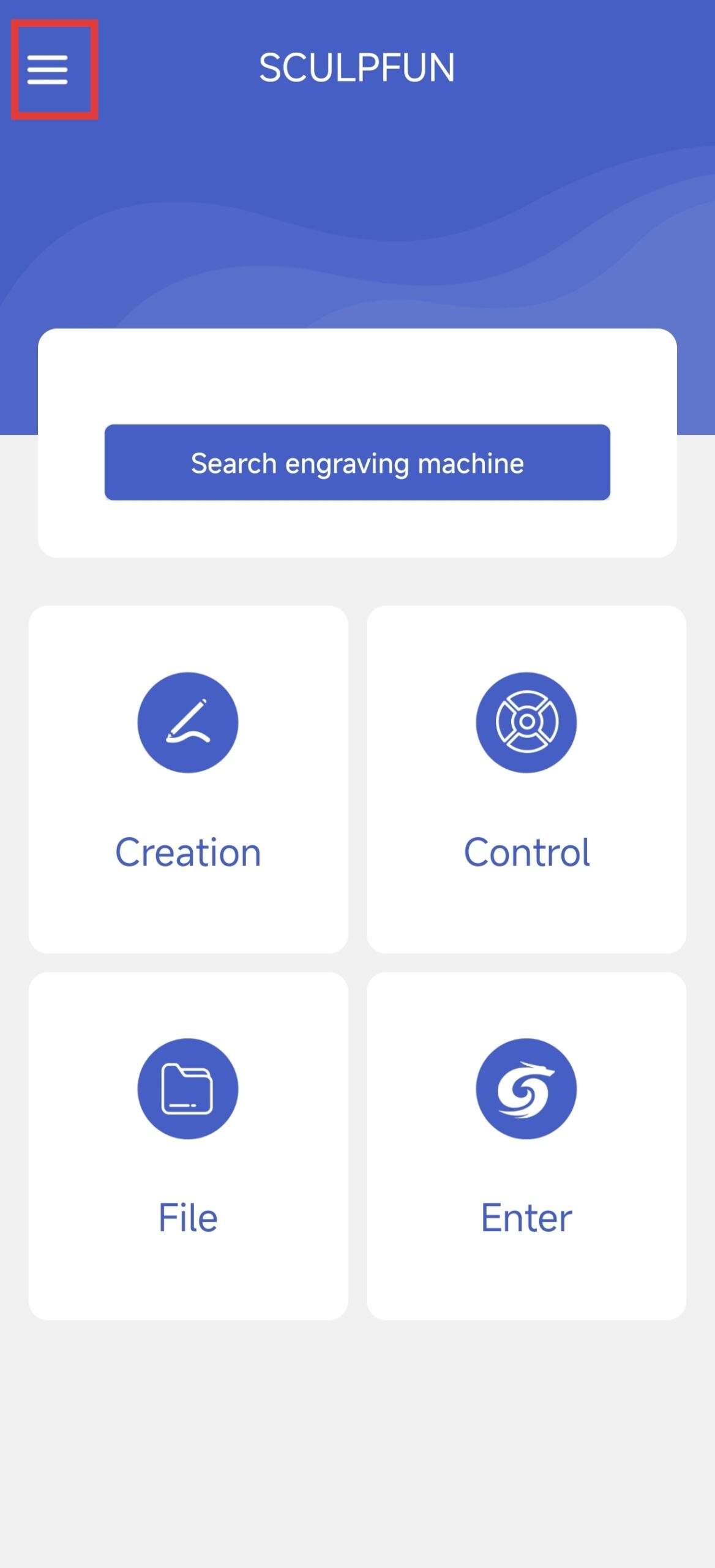
The iCube Ultra series supports Bluetooth connection. Go to the home page and tap the menu icon in the top left corner.
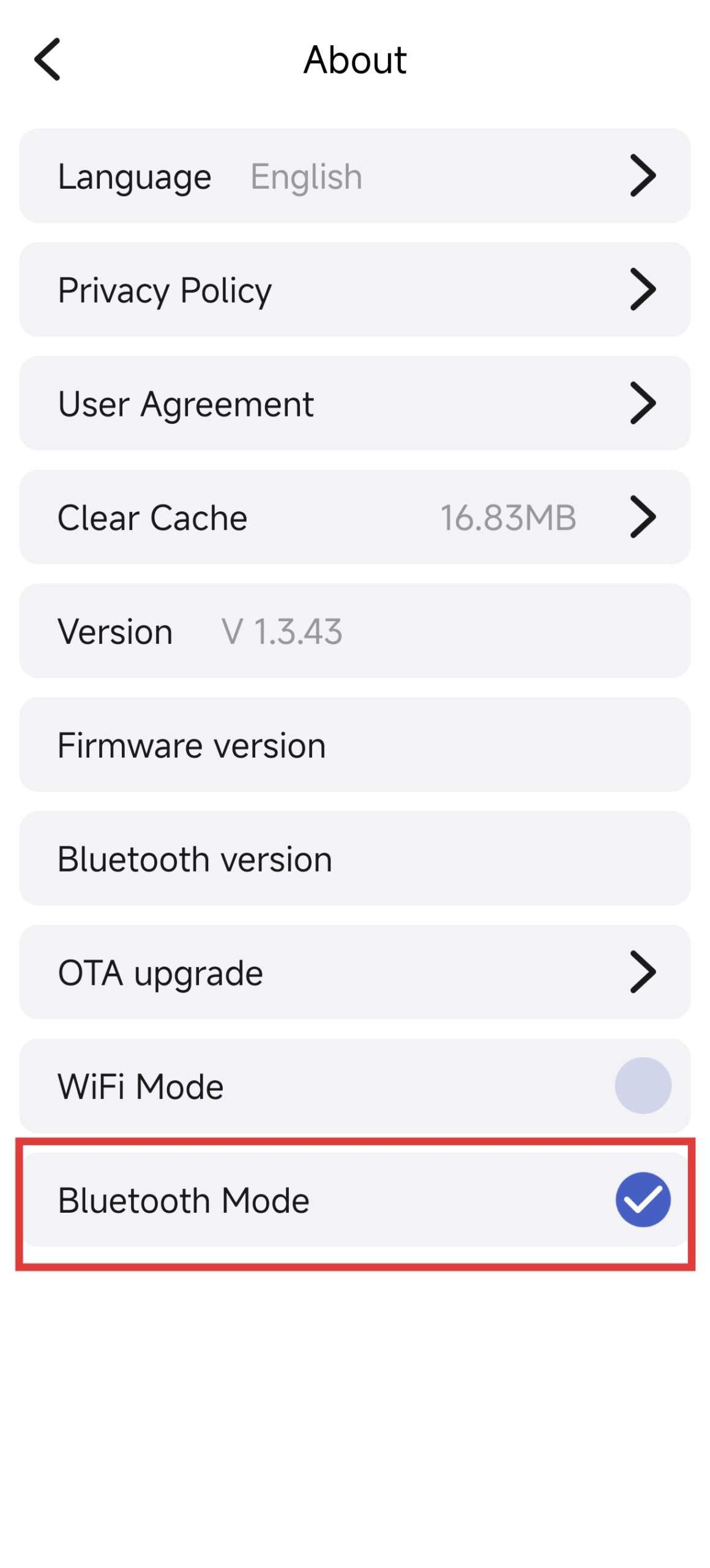
Switch the software to Bluetooth mode.
Return to the home page and tap Search Engraver. The machine will broadcast a Bluetooth signal once powered on.
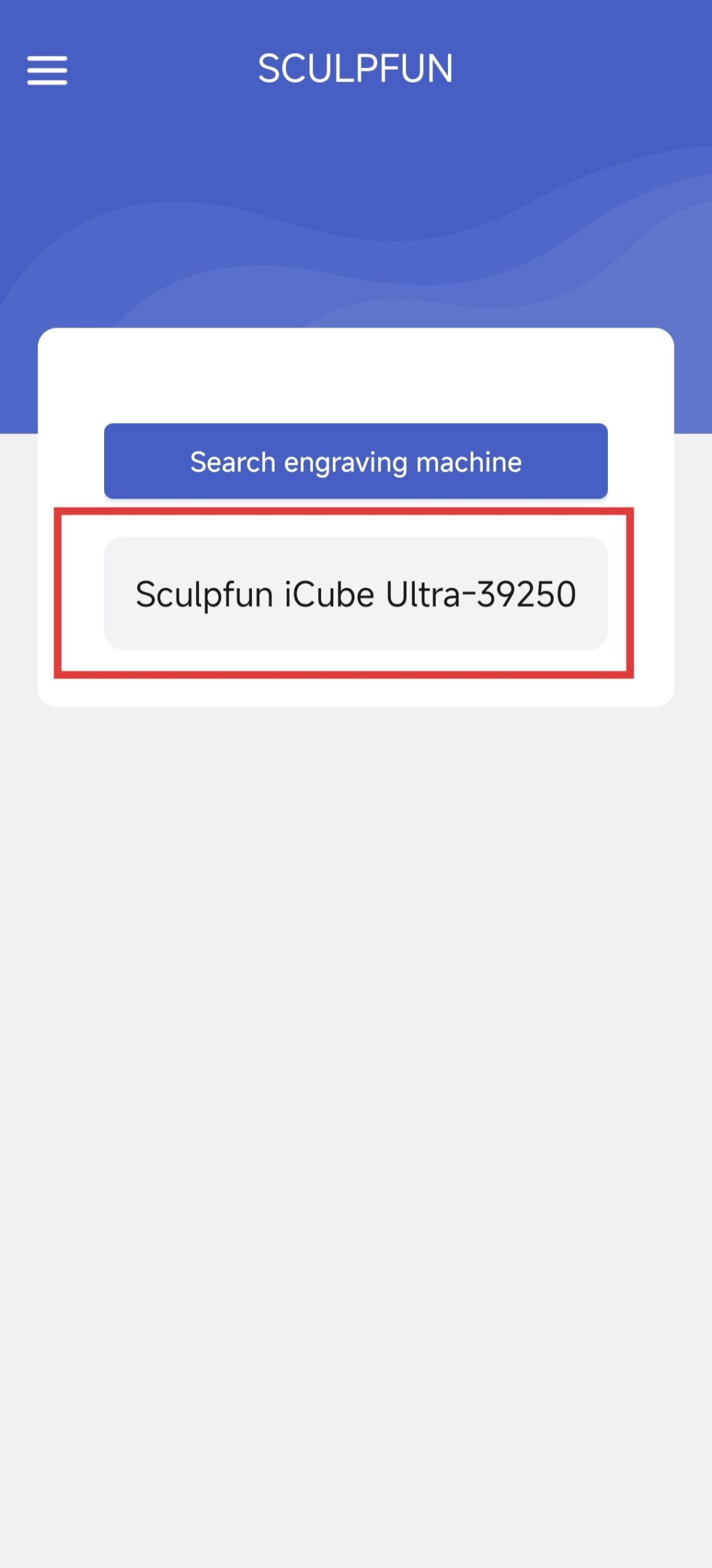
Tap the matching model to complete connection.
PC
The iCube Ultra series works with LightBurn and Sculpfun Space. Click the links to visit corresponding software download pages.
LightBurn Tutorial: See LightBurn Official Documentation, LightBurn Installation Guide
Sculpfun Space Tutorial: See Sculpfun Space Operation Guide
The CH340 driver must be installed on first launch for the computer to recognize the machine serial port. You may search and download it manually or get it from the Sculpfun Space download page.
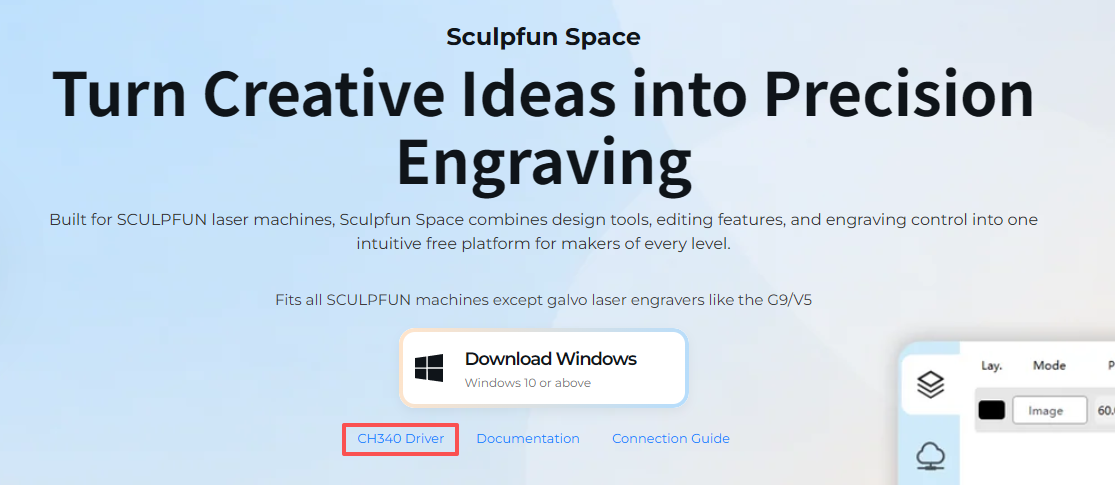
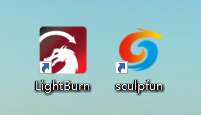
Install the driver and software, then launch the software after installation finishes.
With the machine connected, the software will usually auto-detect the serial port. You can also select the port manually.
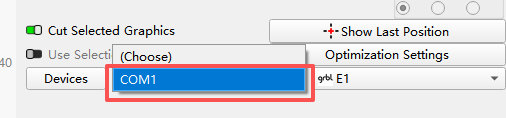
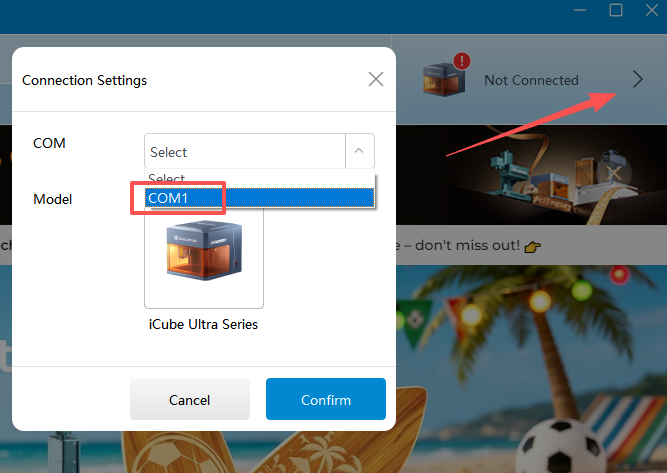
Connection completed.
Software Operation
Mobile
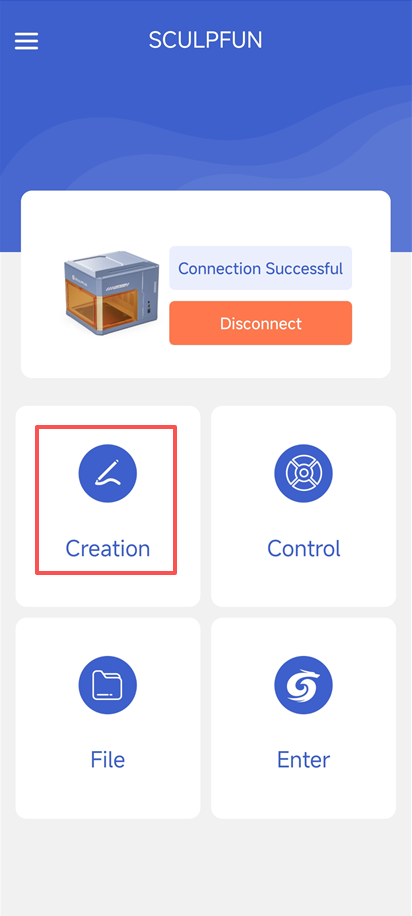
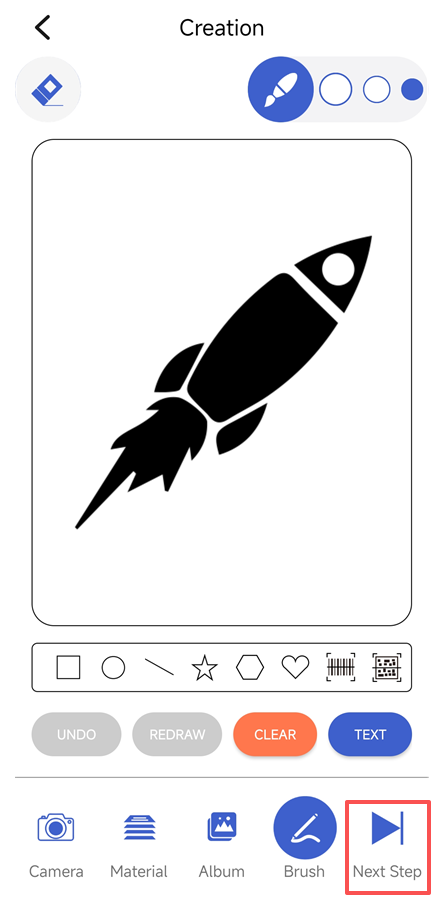
After successful connection, tap Create to start design. You can also tap Control to move the laser head, or tap Files to engrave previous projects.
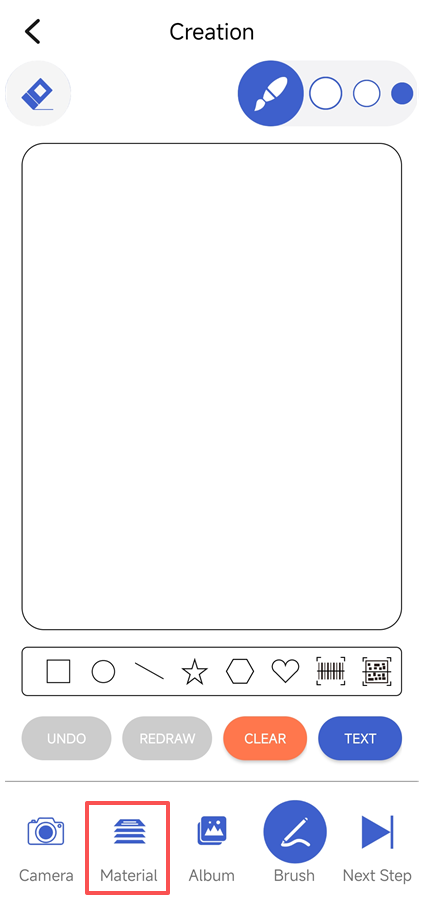
Create graphics freely on the canvas, or take photos / import images via the bottom bar. This example uses imported assets; tap Assets.
Select your asset file.
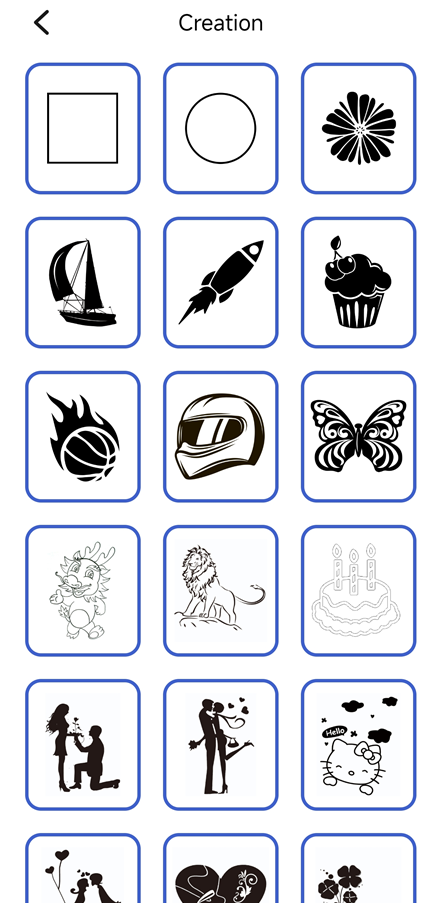
Tap Next after selection.
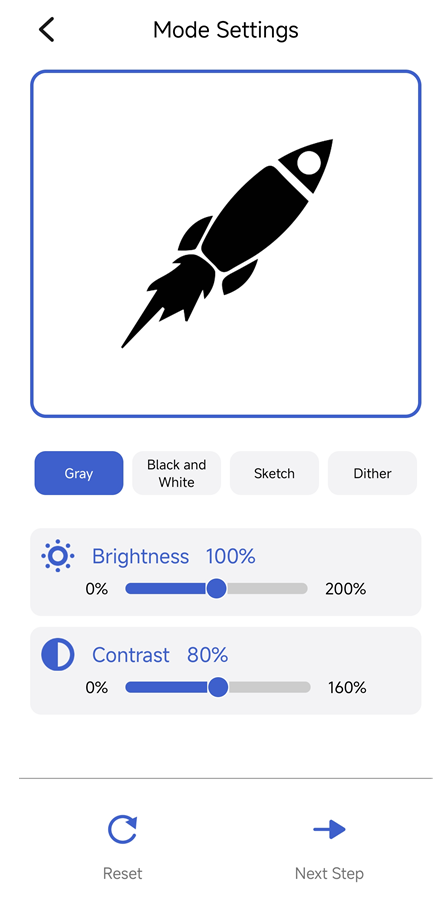
Set engraving mode for the graphic and tap Next.
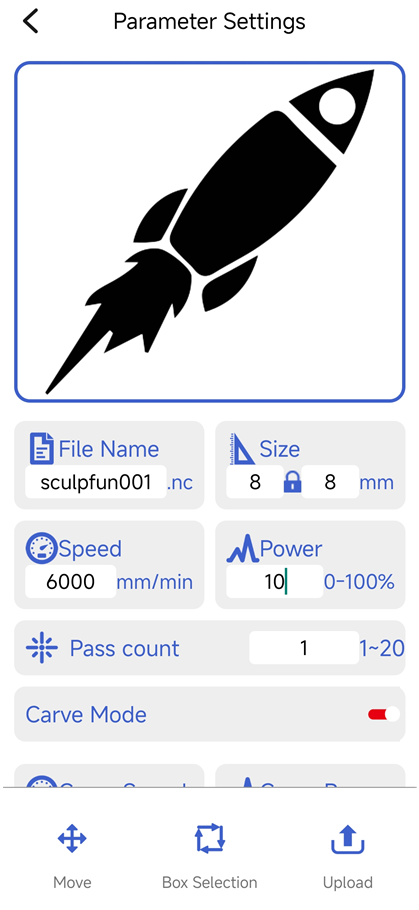
Adjust parameters including graphic size, laser power, laser speed, etc.
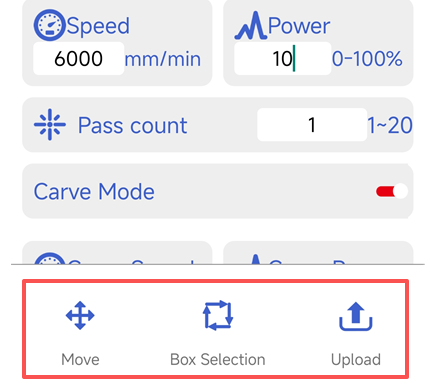
Once settings are done, tap Move to position the laser head properly. Tap Frame Preview to confirm the engraving coverage and ensure the pattern lands in your desired area. Tap Upload to send the engraving file to the machine.
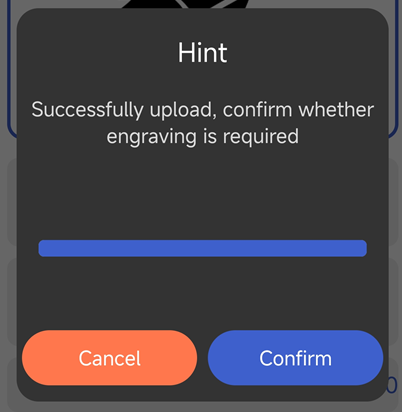
After upload completes, tap Confirm to start engraving.
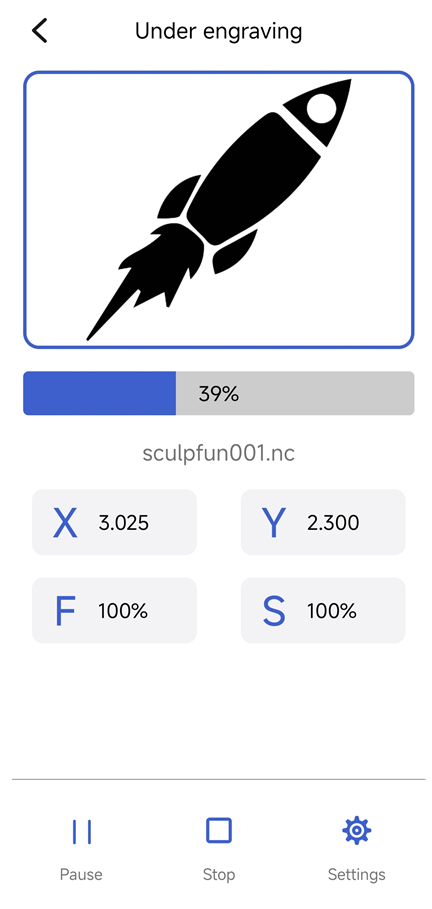
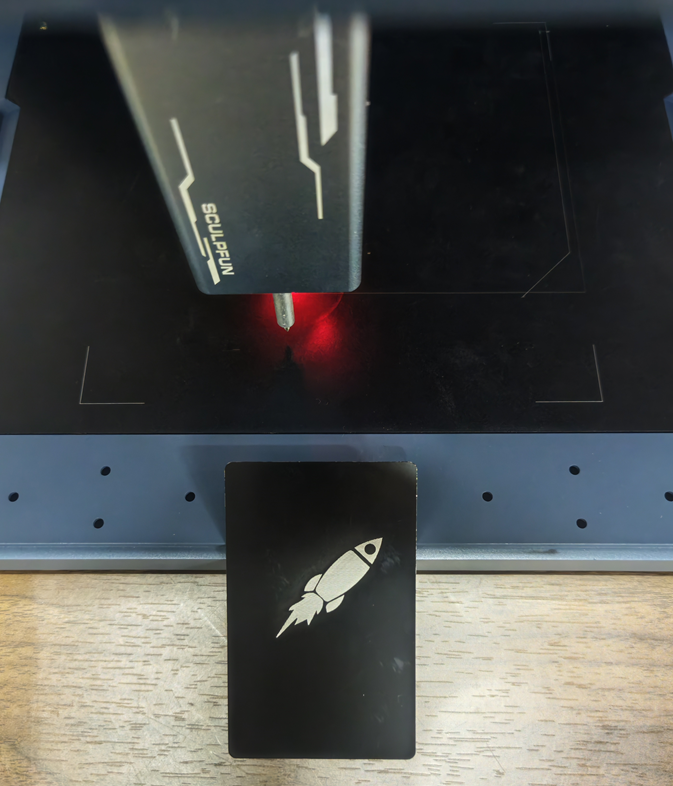
Engraving finished.
PC
The following demonstration uses LightBurn. See Sculpfun Space Operation Guide for its workflow.
Finish software configuration after connecting the machine (LightBurn Installation Guide)
Note: The standard iCube Ultra has a 150*150mm working area; the iCube Ultra Dual version offers 150*130mm. You may modify the canvas size in software settings accordingly.
After configuration, edit your design. Multiple image formats are supported, and you can use the left toolbar to edit graphics.
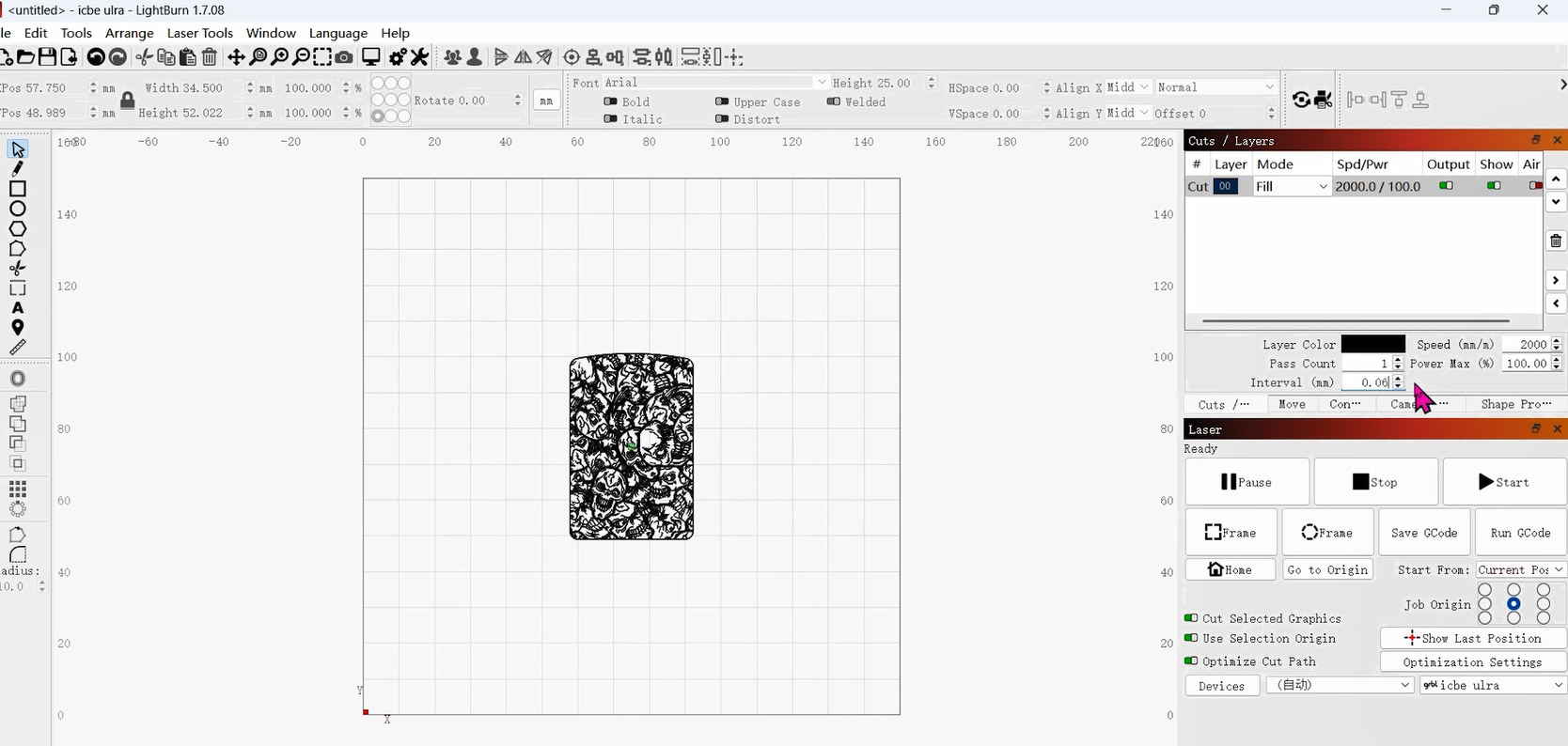
Place your workpiece onto the worktable.
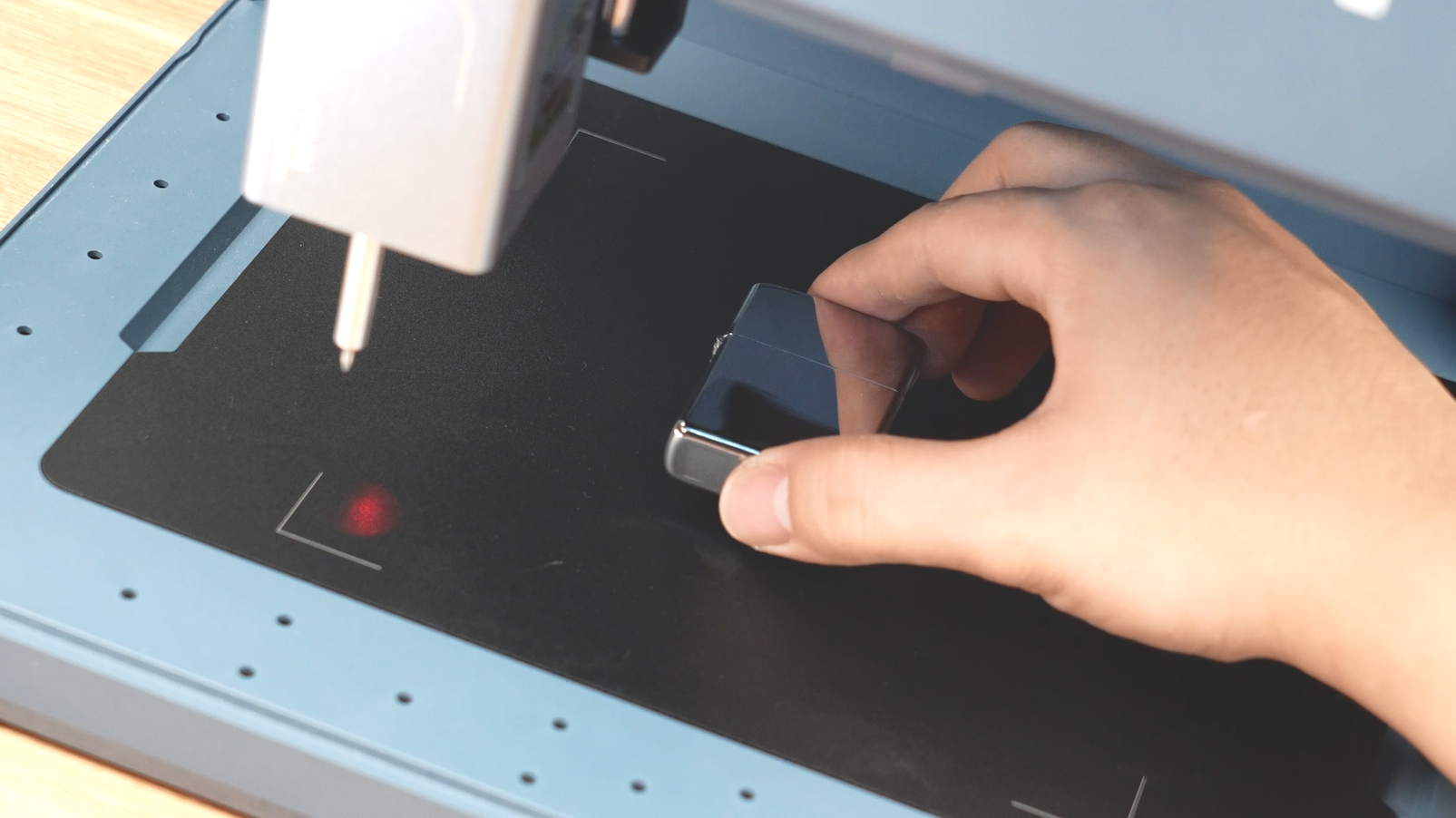
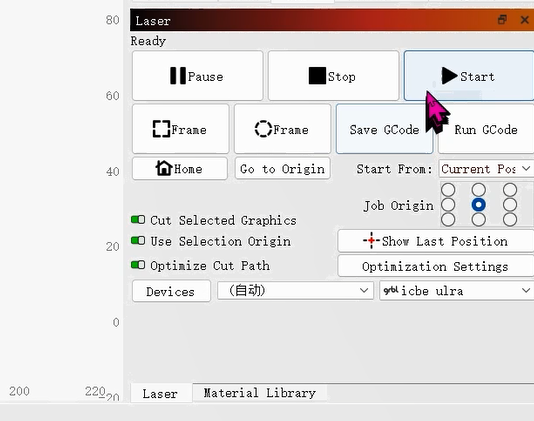
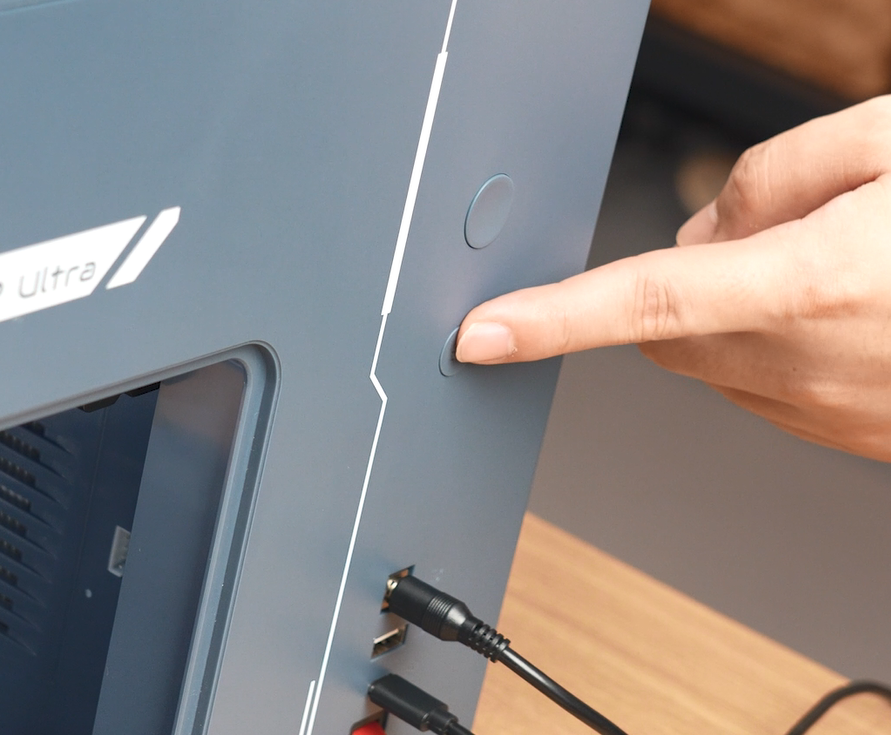
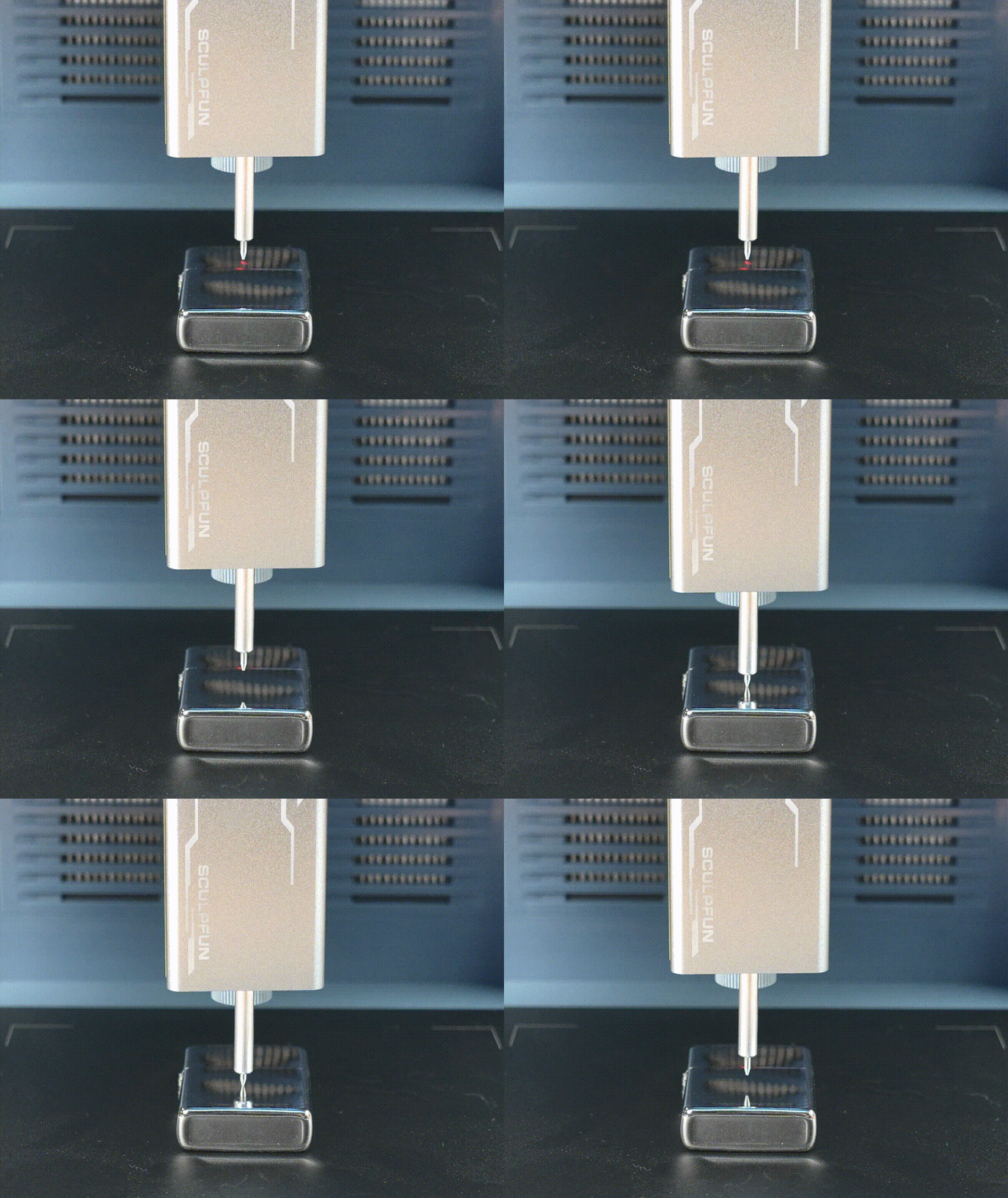
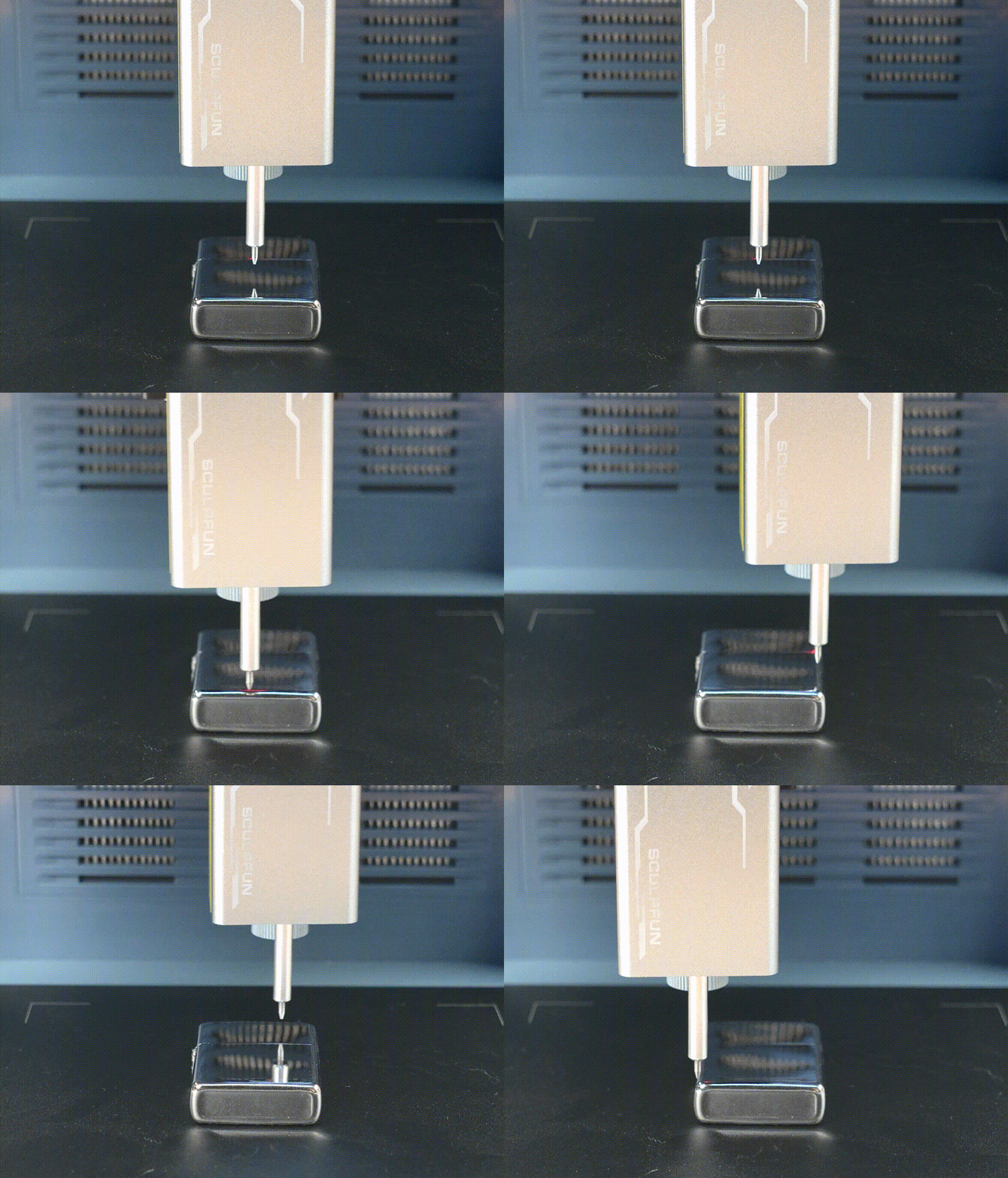
Move the laser head over the material and tap the Auto Focus button.
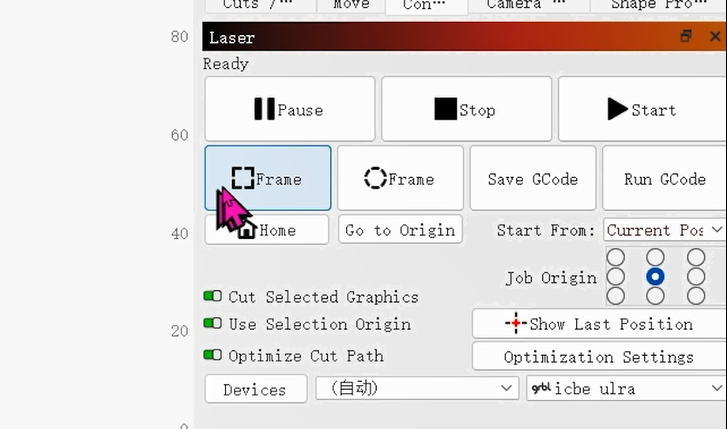
Tap Frame to preview the engraving outline position.
Tap Start to launch the engraving job.